
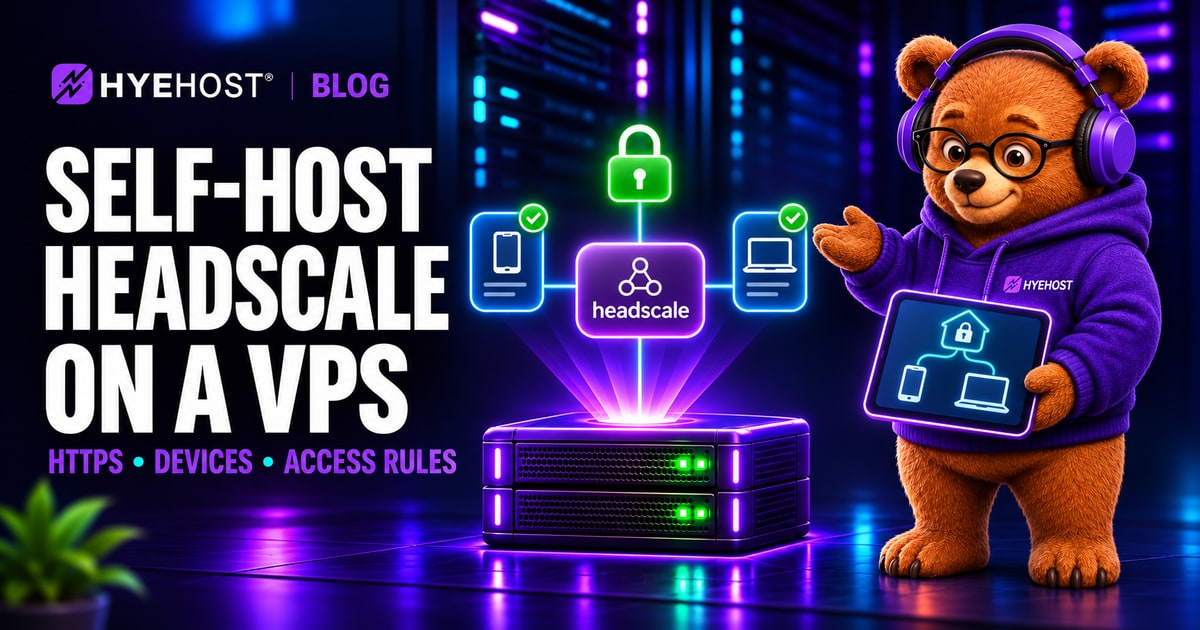
The practical goal is straightforward. A registered laptop should reach a registered server's SSH service over its private address, with an explicit policy controlling that connection. You will manage the Headscale service, its DNS name, client updates and recovery copies.
What Headscale does in a private network
Headscale manages coordination, including registering devices and distributing network information. Install Tailscale clients on the devices you want to connect and direct them to your Headscale instance. The project focuses on private networks for individuals and small organisations. Read the project overview.
Coordination server
Your publicly reachable VPS hosts Headscale, its database and the network policy.
Registered devices
Tailscale clients connect laptops, servers and supported mobile devices to the private network.
Connection paths
Peers can communicate directly, with encrypted relay paths available when direct connectivity fails.
DERP servers provide relay connectivity. The example configuration uses the published default DERP map with Headscale's embedded relay disabled. Review the relay configuration if operating your own relay infrastructure is part of your requirements. Understand Headscale DERP configuration.
The 0.29.7 release includes security fixes and recommends Tailscale 1.104.4 or newer, especially for installations using Tailscale SSH. Keep the coordination server and clients on maintained versions. Review the release's client guidance.
Choose a VPS and prepare the hostname
This walkthrough creates a new Headscale installation. For an existing instance, prepare its recovery copy and review the project's upgrade procedure before changing the installed package.
The commands below target an amd64 Ubuntu or Debian server. Headscale's official package supports Ubuntu 22.04 or newer and Debian 12 or newer. The package supplies a dedicated service account, configuration and systemd unit. Check the official installation method.
Use a VPS with public reachability and a domain you control. Replace headscale.example.com and tail.example.com throughout the examples with your own names. Create an A record for the coordination hostname pointing to the server. Add its AAAA record when IPv6 routing and firewall access work too.
| Listener | Purpose | Access |
|---|---|---|
| TCP 443 | Headscale HTTPS through Caddy | Public |
| TCP 80 | Caddy HTTP handling and certificate validation | Public |
| TCP 8080 | Local Headscale HTTP listener | Loopback only |
| SSH management | Server administration | Authorised administrators |
Other features have their own requirements. An embedded DERP server needs UDP 3478 for STUN, while remote gRPC administration uses a separate listener. Check the project's port reference when enabling additional features. Review Headscale requirements.
HYEHOST Cloud VPS and VDS are available in Wolverhampton, Ashburn and Auckland. Choose the location around administrative access, availability needs and the services participating in your network. Measure memory, database growth and any relay transfer separately.
1. Install the pinned Headscale package
Connect to the VPS with your administrator account and check its architecture.
dpkg --print-architecture
sudo apt update
sudo apt install --yes curl ca-certificates
The following download is for amd64. Work in a new installation directory, download the official package and verify its SHA-256 checksum before installation.
mkdir -p ~/headscale-install
cd ~/headscale-install
curl --fail --location --output headscale.deb \
  https://github.com/juanfont/headscale/releases/download/v0.29.7/headscale_0.29.7_linux_amd64.deb

printf '%s  %s\n' \
  'd230c5fc8db06cf1868f4ec0077b89e5e2ccf3b22a3259efa6d080db2d5f921c' \
  'headscale.deb' | sha256sum --check &&
  sudo apt install ./headscale.deb
The checksum above matches the release's published checksum file. If you choose another version or architecture, use its corresponding package and checksum. Check the release checksums.
The package installation can start the service. Stop it while preparing the initial configuration.
sudo systemctl stop headscale
sudo nano /etc/headscale/config.yaml
2. Set the server URL, DNS and initial policy
Edit the matching keys in the installed configuration. Its complete example is also available at /usr/share/doc/headscale/examples/config-example.yaml. Update each existing section in place, keeping one copy of each key.
server_url: https://headscale.example.com
listen_addr: 127.0.0.1:8080
metrics_listen_addr: ""
trusted_proxies:
  - 127.0.0.1/32
  - ::1/128

tls_letsencrypt_hostname: ""
tls_cert_path: ""
tls_key_path: ""

policy:
  mode: file
  path: /etc/headscale/policy.json

dns:
  magic_dns: true
  base_domain: tail.example.com
  override_local_dns: false
headscale.example.com is the public coordination endpoint. tail.example.com is the private DNS suffix for devices. Choose a different base domain from the server URL's hostname, as required by the configuration. Keep the package's SQLite, key paths, address prefixes and DERP settings for this initial setup. Review the version-matched configuration.
Create /etc/headscale/policy.json with an explicit deny-all starting policy.
{
  "grants": []
}
Set permissions so the Headscale service can read the policy, then check the configuration as its service account. This also ensures any state created by the check has the service account's ownership.
sudo chown root:headscale /etc/headscale/policy.json
sudo chmod 0640 /etc/headscale/policy.json
sudo -u headscale headscale configtest
sudo systemctl enable --now headscale
sudo systemctl status headscale --no-pager
curl --fail http://127.0.0.1:8080/health
Headscale's policy reference documents the explicit empty grants array and how to reload changes. Registration can proceed while access between devices is denied. Read the policy behaviour.
3. Serve Headscale through Caddy HTTPS
This example runs Caddy as a host system service. On a fresh VPS, install it from the official stable repository.
sudo apt install --yes debian-keyring debian-archive-keyring apt-transport-https curl gnupg
curl -1sLf https://dl.cloudsmith.io/public/caddy/stable/gpg.key | \
  sudo gpg --yes --dearmor -o /usr/share/keyrings/caddy-stable-archive-keyring.gpg
curl -1sLf https://dl.cloudsmith.io/public/caddy/stable/debian.deb.txt | \
  sudo tee /etc/apt/sources.list.d/caddy-stable.list
sudo chmod o+r /usr/share/keyrings/caddy-stable-archive-keyring.gpg
sudo chmod o+r /etc/apt/sources.list.d/caddy-stable.list
sudo apt update
sudo apt install caddy
The package starts the Caddy system service. Its official installation page documents the stable repository and service layout. Review Caddy package installation.
Edit /etc/caddy/Caddyfile and add the following site blocks for your coordination hostname.
http://headscale.example.com {
    handle /generate_204 {
        respond 204
    }
    handle {
        redir https://{host}{uri}
    }
}

headscale.example.com {
    reverse_proxy 127.0.0.1:8080 {
        header_up True-Client-IP {remote_host}
        header_up X-Real-IP {remote_host}
    }
}
Validate the full configuration and reload through the normal service workflow. With the standard Caddy package, the commands are typically the following.
sudo caddy validate --config /etc/caddy/Caddyfile
sudo systemctl reload caddy
curl --fail https://headscale.example.com/health
Caddy handles HTTPS and the local proxy connection. The HTTP health-detection route follows the project's proxy example, and the upstream headers supply the connecting client's address to Headscale's configured loopback proxy trust. With Cloudflare DNS, use DNS-only records for this hostname so clients connect directly to your reverse proxy. Test device registration through the final public hostname. Review Headscale reverse-proxy configuration.
Caddy's automatic HTTPS relies on the hostname and certificate-validation path being reachable. Check public DNS and both IP families where published. Review Caddy automatic HTTPS.
Headscale's server_url must keep the public HTTPS URL while its local listener stays on loopback. A local HTTP listener paired with an HTTPS server URL is expected in this reverse-proxy arrangement.
4. Create a user and register two devices
On the Headscale server, create a local Headscale user for the example and list the users.
sudo headscale users create operator
sudo headscale users list
Install a current supported Tailscale client on each device. For a Linux client, download and inspect the publisher's installer, then run it.
curl --fail --location --output tailscale-install.sh https://tailscale.com/install.sh
less tailscale-install.sh
sudo sh tailscale-install.sh
The official platform instructions cover package installation and supported Linux distributions. Review the Linux client installation.
On the first device, point the client at your coordination server.
sudo tailscale up --login-server=https://headscale.example.comOpen the registration URL printed by the client. Follow its instructions and approve the displayed Auth ID from the Headscale server.
sudo headscale auth register --user operator --auth-id AUTH_IDReplace AUTH_ID with that device's pending registration identifier. Repeat the process for the second device. Then list the nodes on the server and check client state on each device. Follow the current registration workflow.
sudo headscale nodes listtailscale status
tailscale ip -4Record the actual private IPv4 addresses assigned to your laptop and server. For Windows, Apple or Android clients, follow Headscale's platform-specific instructions for selecting the login server. Review client support.
5. Allow the laptop to reach private SSH
For this example, suppose the laptop has 100.64.0.1 and the server has 100.64.0.2. Replace these with the addresses shown by your own node listing.
Update /etc/headscale/policy.json to allow TCP port 22 from the laptop to the server.
{
  "grants": [
    {
      "src": ["100.64.0.1"],
      "dst": ["100.64.0.2"],
      "ip": ["tcp:22"]
    }
  ]
}
Check the policy, reload Headscale and review the service logs for its acceptance.
sudo headscale policy check --file /etc/headscale/policy.json
sudo systemctl reload headscale
sudo journalctl -u headscale -n 50 --no-pager
The rule names a specific source, destination and service. Add further permissions around the actual applications you need to reach. Headscale recommends grants for new policies and documents the supported features. Review policy configuration and limitations.
This example carries ordinary OpenSSH traffic through the private network. Use the server's existing SSH account and key, and configure its host firewall to permit the intended private connection.
6. Test the application path and relay behaviour
From the registered laptop, connect to the server's private address with the intended SSH account.
ssh admin@100.64.0.2Confirm a permitted connection works and a listening test service outside the grant is blocked. Keep the application listener and host firewall in the test so you can identify which layer accepted or rejected the connection.
Inspect client connection state and network reachability when peers have trouble finding a direct path.
tailscale status
tailscale netcheck
A direct path and a relayed path have different latency and transfer characteristics. If you later host a DERP relay or enable an exit node, measure that traffic against the VPS plan's public transfer allowance. Understand Tailscale connection paths.
7. Protect the configuration, database and keys
Keep the policy, configuration, database and private keys together in your recovery plan. For the package's SQLite deployment, stop Headscale while taking a filesystem archive of /etc/headscale and /var/lib/headscale, then restart it. Restart the service after the attempt even if the archive operation fails.
Store the recovery copy encrypted and away from the live server. Record the Headscale version and certificate/proxy configuration needed to rebuild the host. Test recovery on an isolated server with controlled device access before relying on the archive.
HYEHOST Storage Box can hold encrypted off-server archives through SFTP and other supported access methods. Our backup guide covers a repeatable recovery workflow. Explore backup storage. Plan a VPS recovery strategy.
For upgrades, review the supported upgrade path and release notes, back up state and test the matching configuration before changing the live service. The project documents version-specific migration requirements. Review Headscale upgrade guidance.
Common Headscale setup problems
The health URL fails
Check the local Headscale listener, systemd status, DNS and Caddy logs. Test the loopback endpoint before the public HTTPS hostname.
A device will not register
Check its login-server URL and current client version. Follow the pending registration page and approve the displayed Auth ID for the intended user.
Nodes appear but SSH fails
Check the actual private addresses, policy reload result, SSH listener, host firewall and account key. Test the service named in the grant.
A private DNS name fails
Check the configured base domain and the client's DNS acceptance settings. Verify the private address path separately while diagnosing name resolution.
Headscale VPS hosting FAQ
What is Headscale?
Headscale is an open-source coordination server used with supported Tailscale clients. You operate the server that manages device registration and network policy for your private network.
Can I self-host Headscale on a HYEHOST VPS?
Yes. Use a compatible Linux VPS with public reachability, a DNS name and HTTPS. HYEHOST Cloud VPS and VDS are available in Wolverhampton, Ashburn and Auckland.
Do I still install Tailscale on my devices?
Yes. Install a current supported Tailscale client on each device and point its login-server setting at your Headscale HTTPS URL. Follow the platform-specific registration instructions for desktop and mobile clients.
Does all private traffic pass through the Headscale VPS?
Device traffic can travel directly between peers. A DERP relay can carry encrypted traffic when a direct path is unavailable. The relay configuration determines which relay infrastructure is used.
How do I start with a deny-all Headscale policy?
Configure a policy file containing an explicit empty grants array. After registering devices, add the source, destination and protocol permissions required by your application and reload the policy.
What should I back up from Headscale?
Protect the configuration, policy, database and private keys together. For a simple SQLite deployment, take a consistent recovery copy with Headscale stopped and test restoration in an isolated environment.